Summary: This guide explains how to download macOS on Windows 11, 10, 8, and 7, including DMG and ISO installers covering releases from macOS Tahoe through to Mac OS X Panther.
If you want to download Mac OS ISO files on a Windows PC or create a macOS bootable USB using Windows, iBoysoft DiskGeeker for Windows can assist. It can also clean up your PC to help ensure downloads complete without interruption.
This article is written in Australian English and intended for readers in Australia.
There are several situations where downloading macOS on a Windows computer becomes necessary.
For instance, if your Mac fails to start or has been completely erased, you may need to use a Windows PC to obtain macOS and create a bootable USB installer. Likewise, users who want to install macOS on a Windows machine will need to download the Mac operating system on Windows. Another common case is when a Mac has very slow Wi-Fi, but a nearby Windows PC has a faster internet connection.
When searching for macOS downloads, you may notice that many options lead to the Mac App Store. This often raises the question of whether macOS can actually be downloaded on Windows. The answer is yes.
This article shows how to directly download full macOS installers on Windows, ranging from the latest macOS Tahoe back to Mac OS X Panther. If you require even earlier Mac OS X versions, refer to the guide on downloading old Mac OS without the App Store.
There are four common formats for macOS installers:
- PKG: Downloaded from Apple's servers and used to install or update macOS directly on a Mac. Not supported on Windows.
- App: Available via the Mac App Store and usable only on compatible Mac computers.
- DMG: A macOS disk image format that can be used on Windows to create a macOS bootable installer.
- ISO: A Windows-compatible format, mainly used for installing macOS in virtual machines.
This guide provides DMG and ISO installers, as these formats are the most practical for Windows users.
If you want to download Windows for use on a Mac, see: Free Download Windows ISO for Mac ⬇️
macOS download for Windows 11/10/8/7
This section lists direct download links for macOS on Windows PCs, covering versions from macOS Tahoe through macOS Sierra.
macOS Tahoe has been officially released and its ISO file is available for download on Windows: Download the macOS Tahoe ISO file for Windows.
Note: If you plan to build a macOS Tahoe Hackintosh, follow the guide on installing macOS Tahoe on Hackintosh.
To run macOS Tahoe in a virtual environment, see the instructions for installing macOS Tahoe on VMware.
For additional versions or instructions on manually creating DMG and ISO files, refer to these resources:
Mac OS DMG Download Full Installer
If you are installing macOS Tahoe on Windows, using VMware is recommended for better performance and security. Follow: How to Install macOS Tahoe on VMware on Windows?
Spread the resources to help others get macOS downloads for Windows 11, 10, 8, and 7!
OS X download on a Windows PC
Here you can find older OS X downloads for Windows, covering OS X El Capitan through OS X Lion.
Available versions include:
Share to help others download Macintosh OS for Windows!
Mac OS X download for Windows
For PowerPC or early Intel-based Macs, the following Mac OS X versions can be downloaded on Windows:
Share these links to download Mac operating system for PC!
Can't download Macintosh OS for Windows
If you are unable to download macOS on Windows, the most common reason is insufficient free disk space. In this case, iBoysoft DiskGeeker for Windows can be used to analyse your storage and remove large, unnecessary files.
Steps:
- Download and install iBoysoft DiskGeeker for Windows.
-
Launch the app and open the Space Analyzer module.
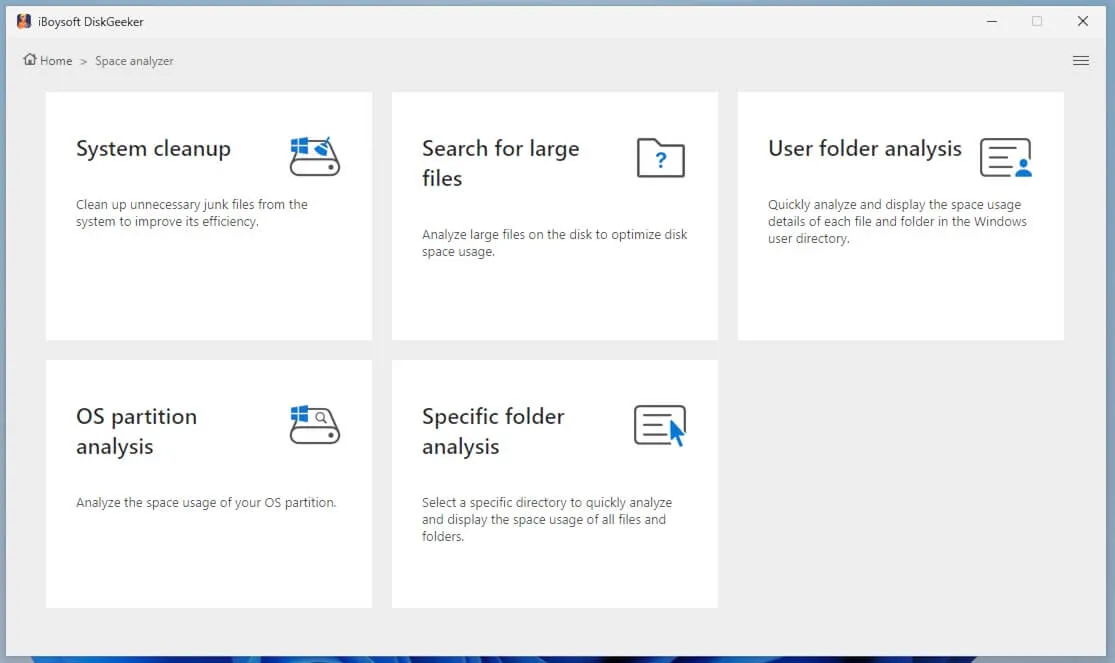
- Select the OS partition analysis.
-
Review files you no longer need.
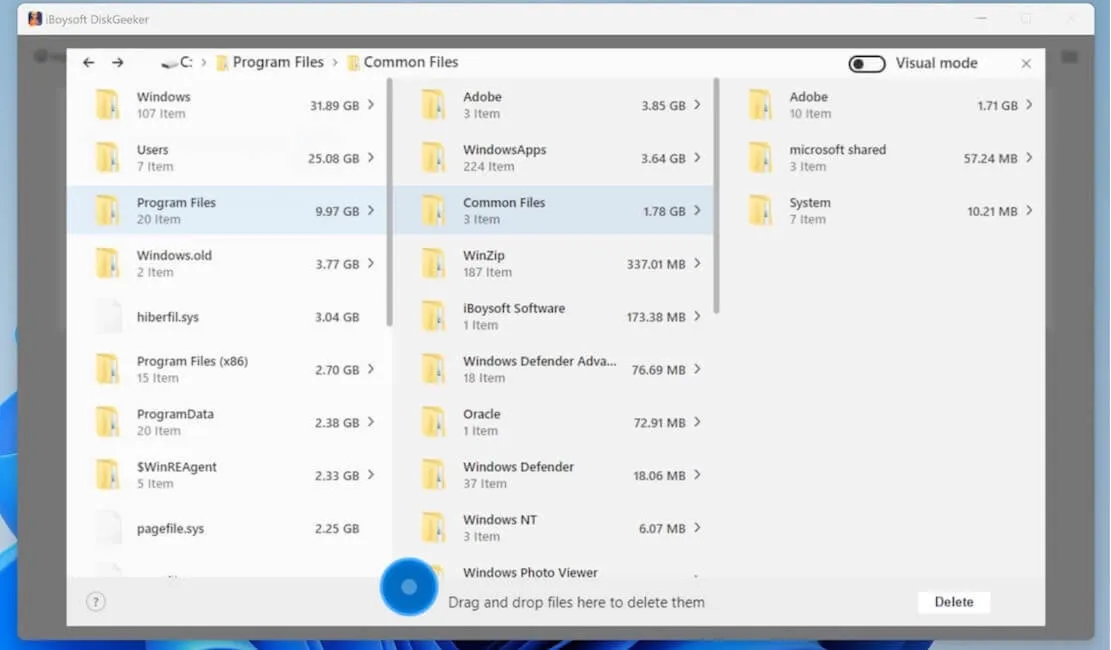
- Drag them to the deletion area and click Delete.
Were you able to get the macOS download for Windows? Share this article if you find it helpful!
Create a macOS bootable USB installer on Windows
If you prefer not to rely on online ISO sources or want to create a macOS bootable USB installer on Windows, iBoysoft DiskGeeker for Windows provides a reliable solution.
It includes macOS ISO files from macOS Tahoe through Mac OS X Snow Leopard and simplifies the creation of bootable USB installers.
How to download Mac OS on Windows:
- Install iBoysoft DiskGeeker for Windows.
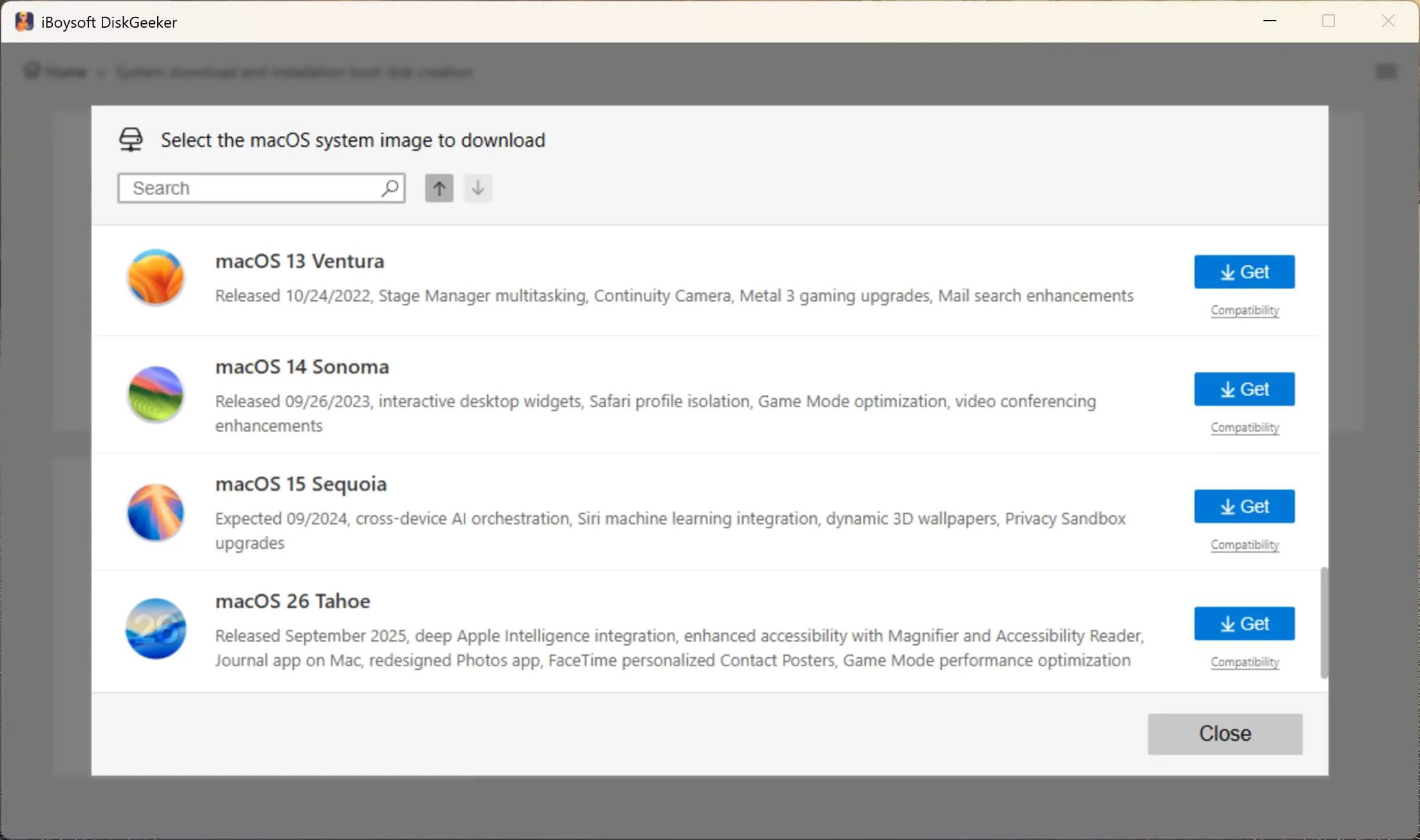
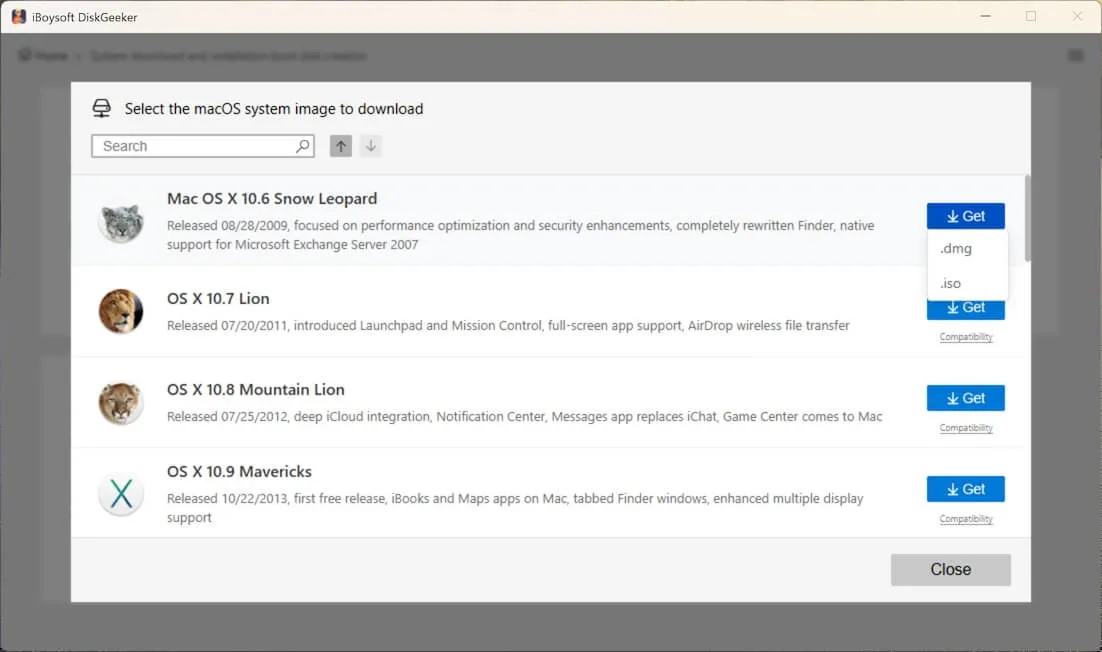
- Go to Download and create boot disk > Download macOS system image.
-
Select the required macOS version and click Get.
-
Choose DMG or ISO format.
-
Select a save location and wait for the download to complete.

How to create a macOS bootable USB installer on Windows:
- Install iBoysoft DiskGeeker for Windows.
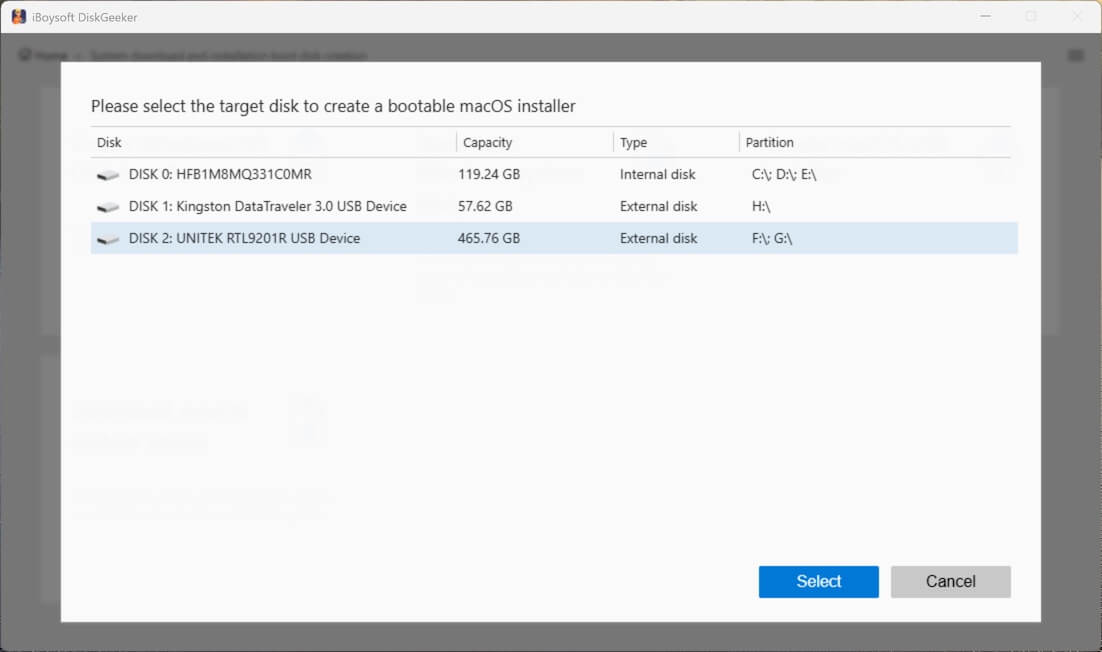
- Open Download and create boot disk > Create macOS USB Installer.
- Connect an external drive with at least 20 GB of space.
-
Select the external drive and continue.
-
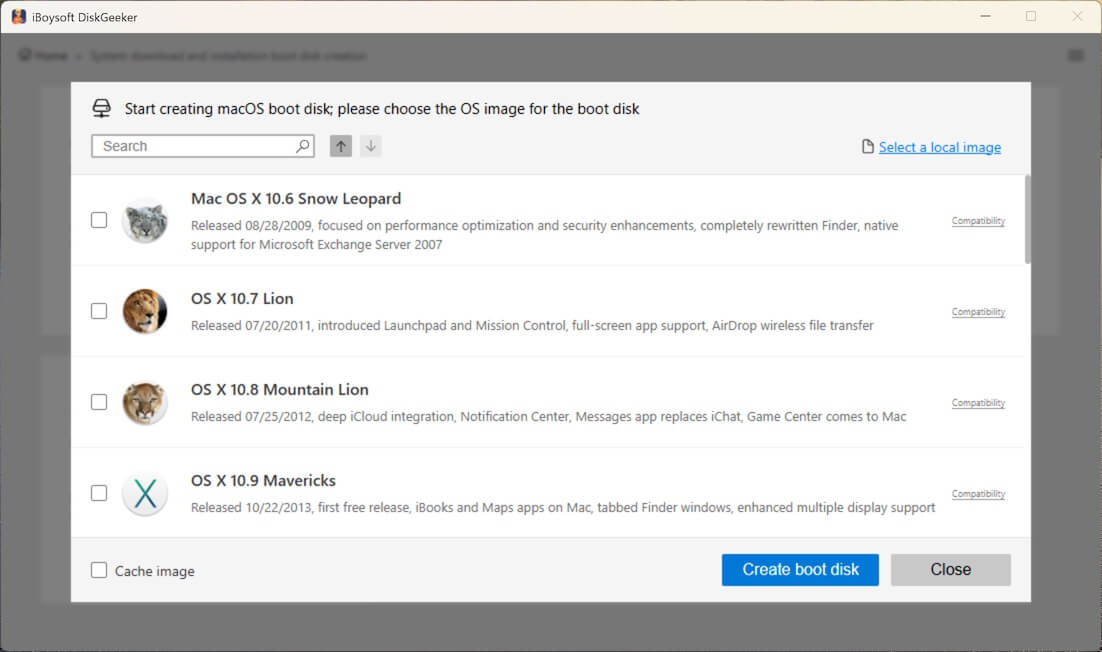
Choose the macOS version and click Create boot disk.
If you also need the Windows operating system, you can download it from the following links:
Windows 11 Download | Windows 10 Download Pro, Enterprise, Home & Education | Windows 7 Ultimate | Windows 7 Home Premium
Share this tool to help your friends create macOS bootable USB installers on Windows!