Summary: This article explains how to download macOS Sierra 10.12 as a DMG or ISO file on both Mac and Windows systems. It also covers ways to obtain bootable macOS Sierra images or create a bootable USB installer.
This article is written in Australian English and intended for readers in Australia.
macOS Sierra was officially released in September 2016 and marked an important step forward for Apple's desktop operating system. It was the first version to adopt the macOS name, replacing OS X and aligning the Mac platform with iOS, watchOS, and tvOS.
The update also introduced several notable features to Mac users, such as Siri support, the ability to copy content on one Apple device and paste it on another, and the Optimised Storage feature within iCloud Drive.
Although macOS Sierra is no longer a recent release, some users may still need macOS 10.12. This can be due to software compatibility requirements, older hardware, or personal preference. In these situations, you may need a macOS Sierra DMG for a Mac or a macOS Sierra ISO file for use with a virtual machine.
Before installing the system, you will need to download the full macOS 10.12 Sierra installer, either in DMG or ISO format. It is also important to understand the correct installation steps in advance.
Tips: To download macOS Sierra, using iBoysoft DiskGeeker is recommended. The tool allows you to download a bootable macOS Sierra DMG file and also helps with creating bootable USB installers.
Steps to download macOS Sierra:
Step 1: Download, install, and open iBoysoft DiskGeeker.
Step 2: Click Download Image in the lower-left corner of the interface.
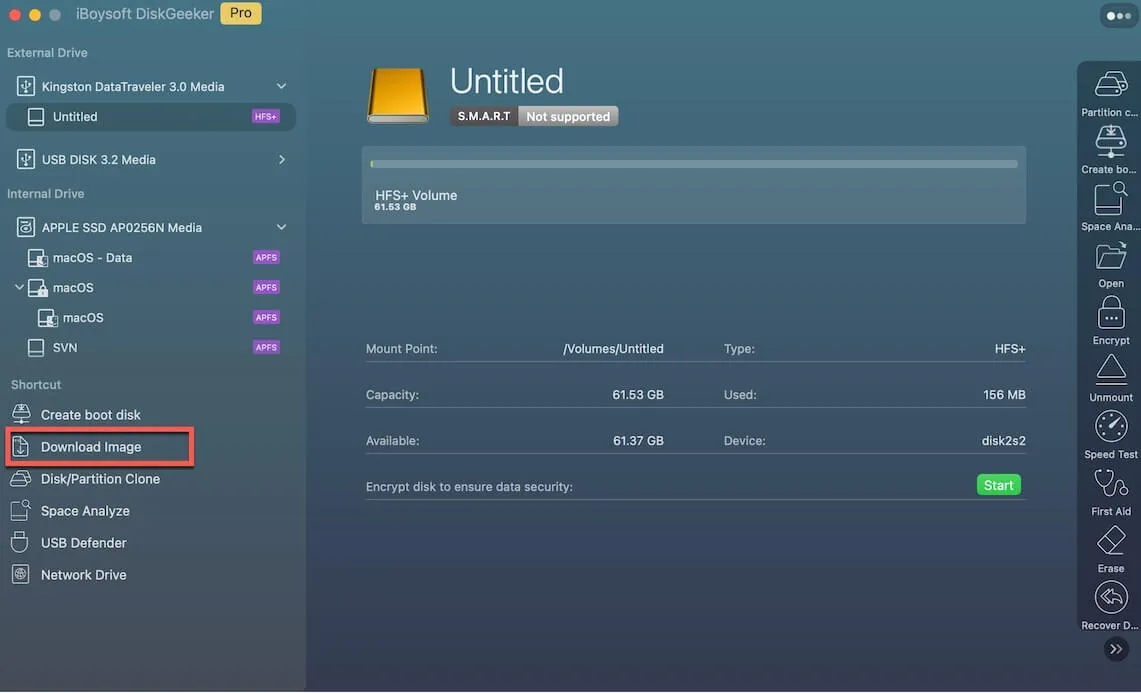
Step 3: Choose macOS 10.12 Sierra and click Get.

If you are looking for installers for other macOS versions, you can access a collection of the latest macOS, OS X, and Mac OS X installers.
If you plan to install macOS Sierra on a Windows computer, you will need to download the macOS installer while using Windows.
Download macOS Sierra 10.12 DMG full installer [Direct link]
There are two main methods for downloading the macOS Sierra DMG file: directly from Apple's servers or from a reliable third-party archive.
Unlike newer macOS releases that are available through the Mac App Store, macOS Sierra is only provided by Apple as a disk image hosted on its servers. Access to the download is restricted to Macs that support macOS 10.12.
To obtain the installer, you must use a Mac model that is compatible with macOS Sierra. When opening the download link, it is best to use Safari, as other browsers such as Chrome may not trigger the download correctly.
If your Mac does not support macOS Sierra, or if you are using a Windows PC, you can download macOS 10.12 from archive.org. The site offers access to the macOS Sierra DMG file for Windows 7, 8, 10, and 11, as well as macOS systems.
You can share these download links with others who need access to macOS 10.12.
Download macOS Sierra 10.12 ISO Full Installer [Direct Link]
If you want to run macOS Sierra on a virtual machine, either on Windows or on unsupported Mac hardware, you will need the ISO version of the installer. Use the link provided to download the macOS 10.12 ISO file for VirtualBox or VMware.
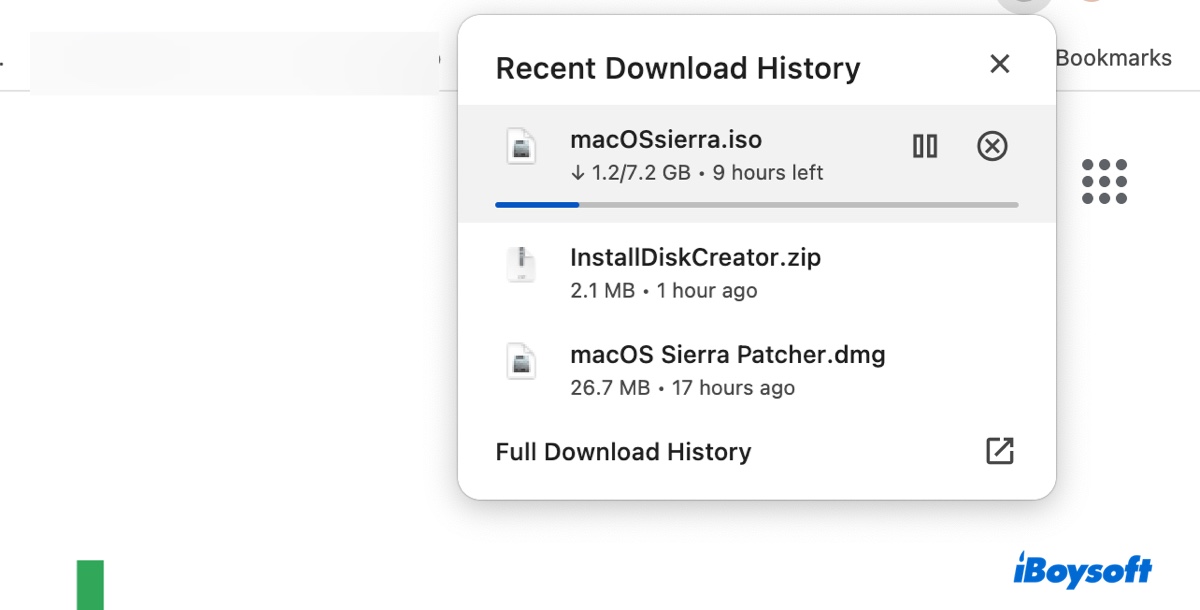
Download macOS Sierra 10.12 ISO for VirtualBox/VMware
A VMDK file for macOS Sierra is also available for those installing the system in a virtual environment.
How to Create a Bootable USB Installer with macOS Sierra DMG?
A bootable USB installer is commonly required when performing a clean installation, upgrading or downgrading macOS, or setting up a virtual machine.
Use iBoysoft DiskGeeker to Create Boot Media
Instead of creating the bootable installer manually, you can use iBoysoft DiskGeeker to generate macOS Sierra boot media more easily.
Step 1: Download and install iBoysoft DiskGeeker.
Step 2: Select Create boot disk from the left-hand menu.
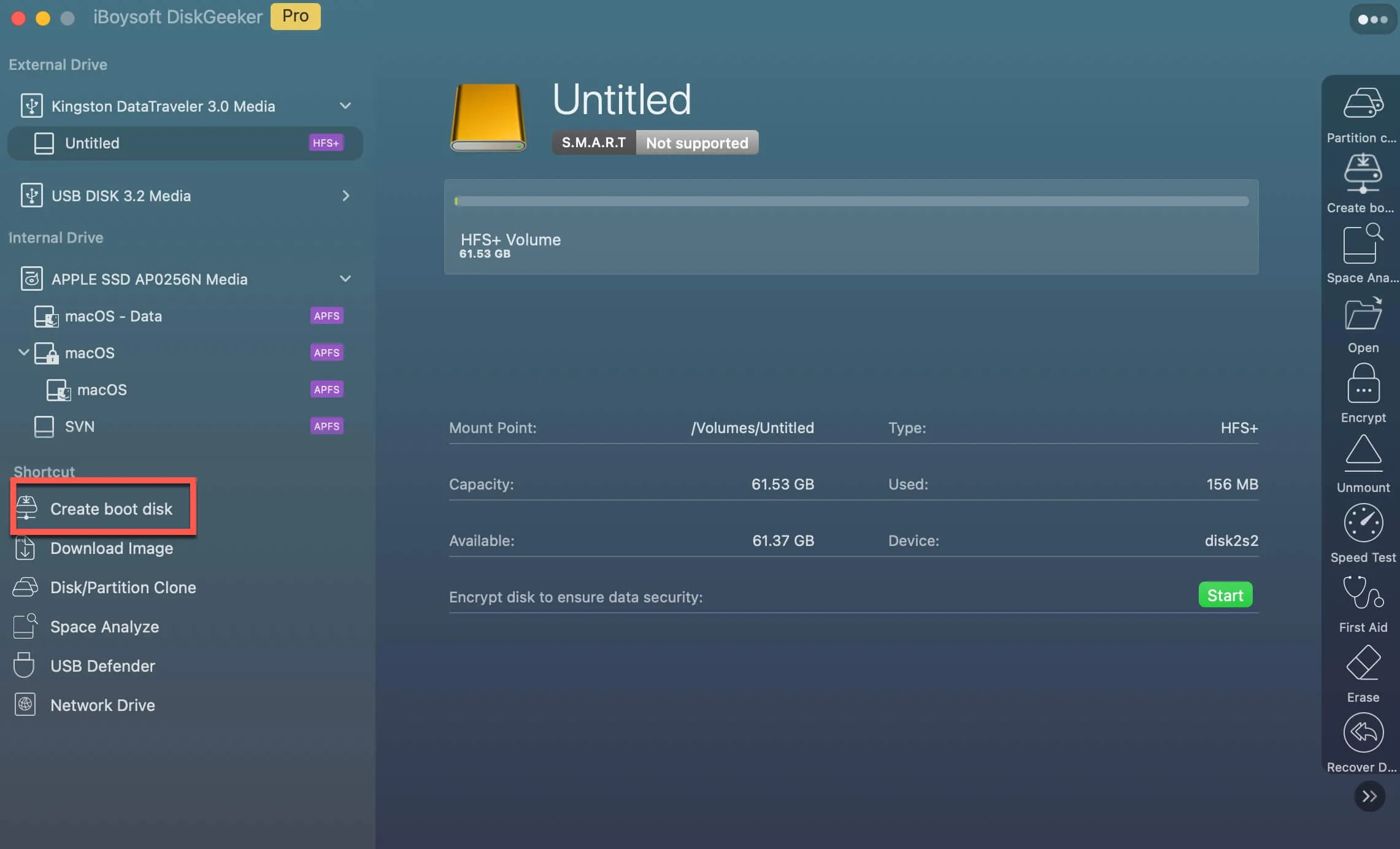
Step 3: Choose your external storage device and click Select > Continue.
Step 4: Choose macOS 10.12 Sierra and click Create boot disk.
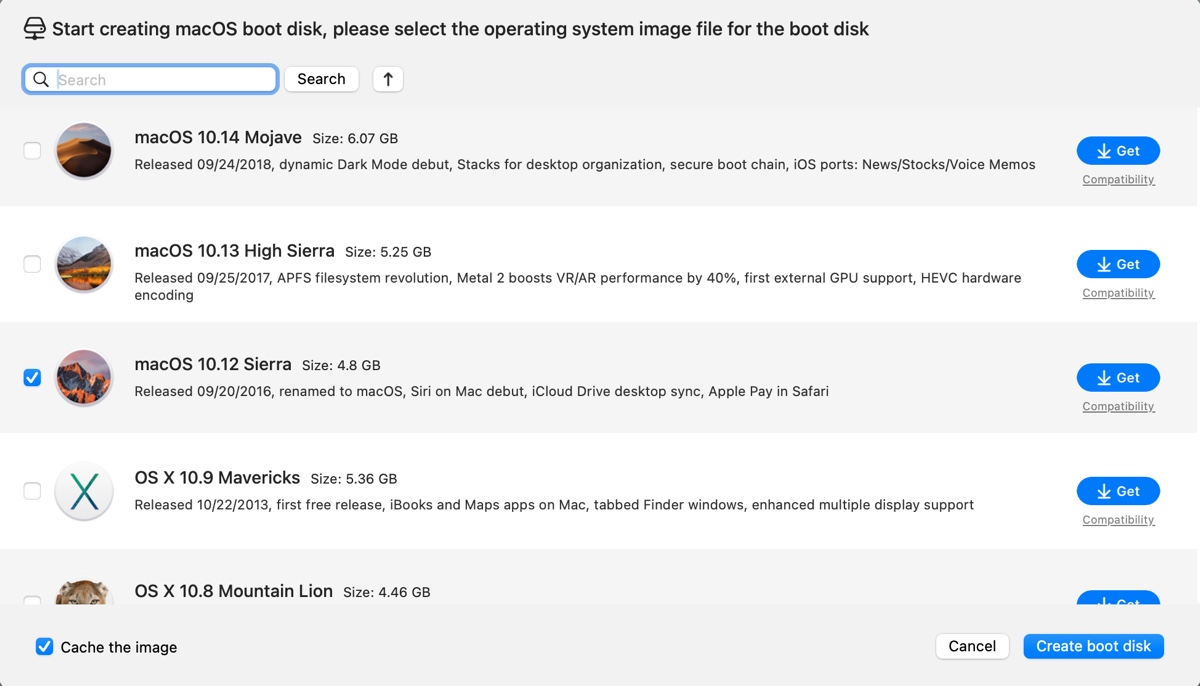
After the installer is created, you can continue based on whether you are using a compatible Mac or a Windows PC.
If you are using a Windows PC, follow this guide for creating a macOS bootable USB from Windows: How to Create a macOS Bootable USB from Windows 10/11?
Creating the installer manually on supported systems
If you are working with a Hackintosh or a Mac that supports macOS High Sierra or later, the latest macOS Sierra, or OS X El Capitan, follow the steps below.
Step 1: Add the macOS Sierra installer to the Applications folder
The macOS command used to create a bootable installer only works if the installer application is located in the correct directory.
Open InstallOS.dmg, then double-click InstallOS.pkg and follow the on-screen instructions. The installer will check whether your Mac supports macOS Sierra before completing.
If the Mac is not compatible, the process will stop with an error stating that macOS 10.12.6 cannot be installed on the computer.
Step 2: Format the USB storage device
Prepare an external drive with at least 8 GB of available space. Make sure to back up all data before formatting, as the process will erase the drive.
-
Open Disk Utility.
-
Select View > Show All Devices.
-
Choose the top level of the external drive.
-
Click Erase.
-
Name the drive MyVolume.
-
Select Mac OS Extended (Journaled) as the format.
-
Set the scheme to GUID Partition Map.
Step 3: Create the macOS Sierra bootable installer using Terminal
Once the drive has been formatted, open Terminal and run one of the following commands:
sudo /Applications/Install\ macOS\ Sierra.app/Contents/Resources/createinstallmedia --volume /Volumes/MyVolume --applicationpath /Applications/Install\ macOS\ Sierra.apporsudo /Applications/Install\ macOS\ Sierra.app/Contents/Resources/createinstallmedia --volume /Volumes/MyVolume
Enter your administrator password when prompted, confirm the action if required, and wait until the process finishes.
Step 4: Boot from the macOS Sierra USB installer
Insert the USB drive into the Mac you want to start up. Turn on the Mac and immediately hold down the Option key until the available startup volumes appear. Select the macOS Sierra installer and follow the on-screen instructions.
When the macOS Utilities window appears, choose Install macOS Sierra to begin installation.
Share this guide if you find it helpful!
Not enough space to download macOS Sierra 10.12 installer?
Downloading the macOS Sierra installer requires sufficient free storage space. To avoid download issues or installation failures, it is recommended to remove unnecessary files beforehand.
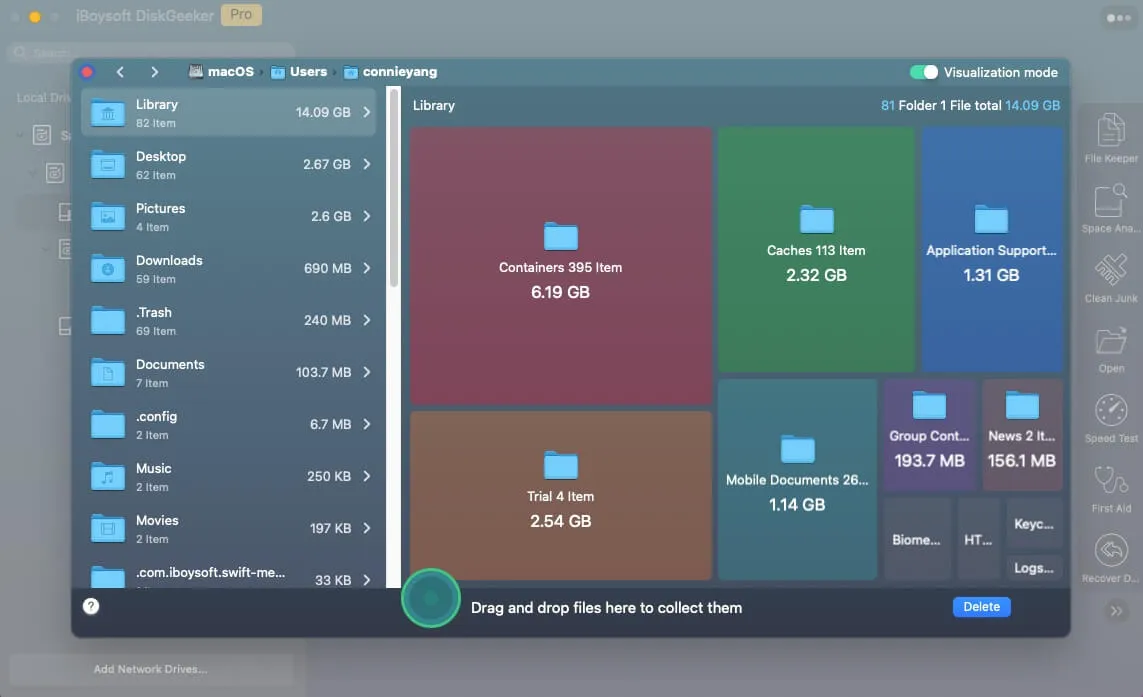
Disk cleaning tools such as iBoysoft DiskGeeker can help by analysing your internal drive and listing files and folders by size. This makes it easier to identify large or unused items and remove them efficiently.
You can also use the Clean Junk feature to find and delete junk files, including app caches, log files, preference data, email attachments, and items in the Trash.
Share this guide to help others download macOS Sierra DMG and ISO files.
FAQs about macOS 10.12 download
-
A
Apple ended official support for macOS 10.12 on 30 November 2019. The final release is macOS 10.12.6.
-
A
You can update via System Preferences > Software Update, or download and run the macOS 10.12.6 installer manually.