This article is written in Australian English and intended for readers in Australia.
Note: Windows 11 25H2 was released by Microsoft on 30 September 2025. Using the links below, you can download the Windows 11 25H2 ISO as well as earlier releases, including Windows 11 24H2, 23H2, and 22H2.
A Windows 11 ISO file is required for tasks such as performing a clean installation, building a bootable USB installer, installing Windows on a virtual machine, deploying Windows across multiple computers, or upgrading an existing system.
If you are looking to download Windows 11 ISO editions such as Home, Pro, or Education, follow this guide. We provide official 64-bit Windows 11 ISO download links below. (For other Windows versions, see: Windows ISO Download)
Warning: Although Windows 11 ISO files can be downloaded without payment or a product key, you will need a valid licence key during installation to unlock all Windows 11 features.
Before downloading, ensure the destination PC meets the minimum system requirements for Windows 11.
| CPU | 1 GHz or faster, with at least 2 cores on a compatible 64-bit processor or System on a Chip (SoC) |
| RAM | 4 GB or more |
| Storage | 64 GB storage or more |
| System Firmware | UEFI or Secure Boot enabled |
| TPM | Version 2.0 |
| Graphics Card | DirectX 12 compatible, WDDM 2.0 driver |
| Display | >Over 9 inches with HD (720p) or higher resolution |
Download Windows 11 ISO via the direct links
So far, Microsoft has released three mainstream Windows 11 versions: 24H2, 23H2, and 22H2.
The following secure 64-bit ISO download links are hosted on archive.org.
⬇Download Windows 11 24H2 ISO (5.4 GB)
⬇Download Windows 11 23H2 ISO (6.2 GB)
⬇Download Windows 11 22H2 ISO (5.2 GB)
Microsoft plans to roll out Windows 11 25H2 widely in the second half of 2025. Until then, you can use the UUP Dump tool to generate a Windows 11 25H2 Insider Preview ISO for testing purposes.
⬇Create & download Windows 11 25H2 ISO (8.27 GB)
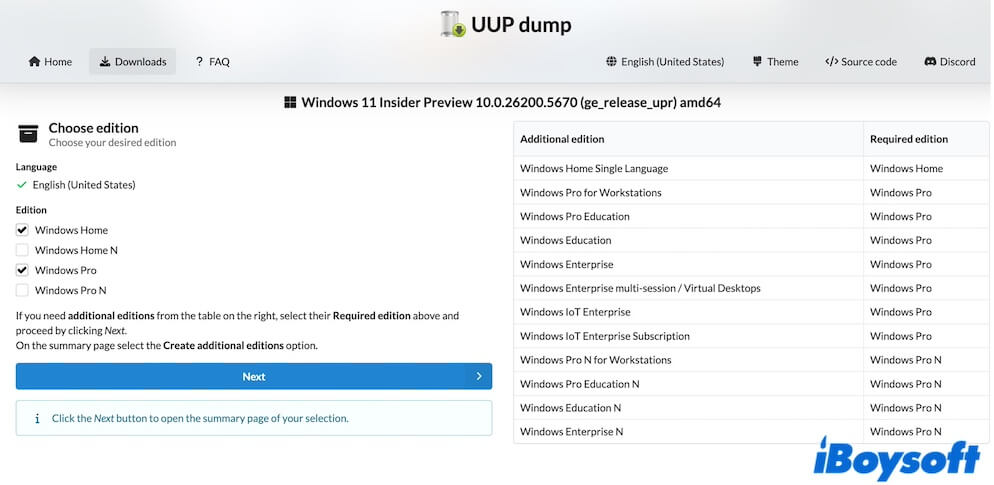
Each Windows 11 ISO includes multiple editions, such as Home, Pro, Education, and Enterprise. During setup, select the edition that matches your licence.
Feel free to share these download links with others.
Download Windows 11 ISO from Microsoft
Microsoft also provides free access to official Windows 11 ISO files. The current release is Windows 11 25H2, and the download process involves several steps.
Windows 11 ISO download for Intel/AMD PCs
- Visit the Microsoft Windows 11 ISO download page.
- Scroll down to "Download Windows 11 Disk Image (ISO) for x64 devices."
- From the menu, choose "Windows 11 (multi-edition ISO for x64 devices)."
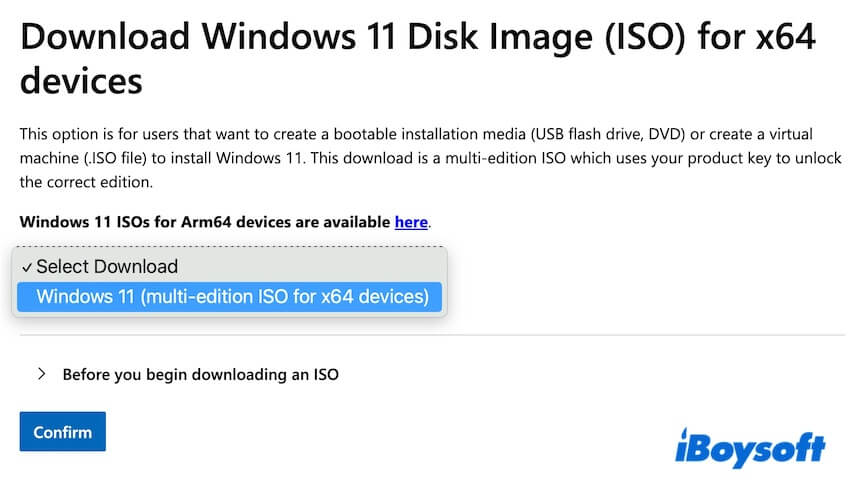
- Expand "Before you begin downloading an ISO" and review the notes.
- Click "Confirm" and wait for the validation.
- Select your preferred language and confirm.
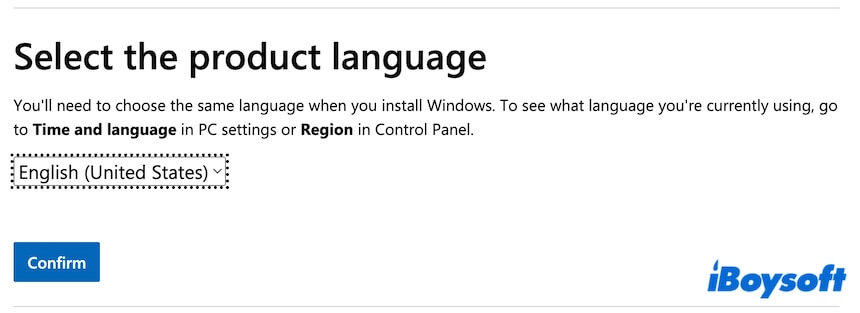
- Click the 64-bit Download button to begin downloading the ISO (5.4 GB).
Windows 11 ISO download for ARM-based PCs
- Go to the Microsoft Windows 11 (ARM64) ISO download page.
- Select "Windows 11 (multi-edition for Arm64)." from the download menu.
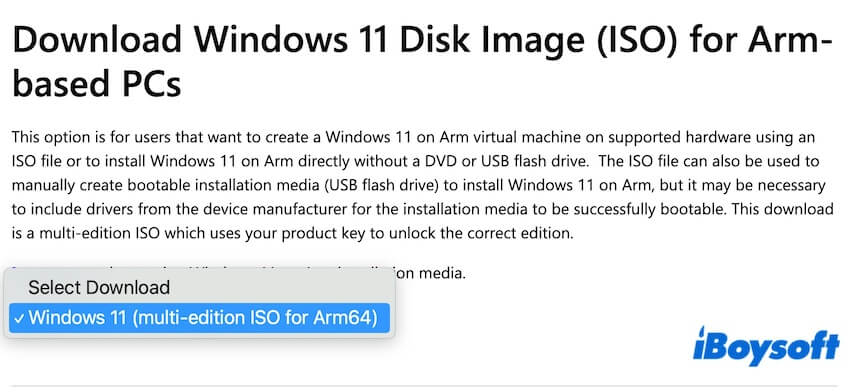
- Click "Download Now."

- Select a language and confirm.
- Click "Download Now" to download the Windows 11 (ARM64) ISO.

All Microsoft-provided Windows 11 ISO files contain multiple editions, which you select during installation.
Download Tiny11 (Lite Windows 11)
Tiny11 is an unofficial lightweight build of Windows 11 Pro developed by third parties.
It targets older or low-spec systems that do not meet standard Windows 11 hardware requirements, such as machines with 2 GB RAM and 32 GB storage.
Compared with the official Windows 11 Pro release, Tiny11 removes many default apps, background services, and system components.
Two free Tiny11 download sources are available:
⬇Tiny11 download from archive.org (23H2, x64, 4.2GB)
⬇Tiny11 download from TECHSPOT (23H2, x64, 3.5GB)
Tell others how to get Tiny11.
Download Windows 11 IoT Enterprise LTSC
Windows 11 IoT Enterprise LTSC is designed for embedded devices, specialised hardware, and environments that require long-term stability.
You can download Windows 11 IoT Enterprise LTSC directly from Microsoft:
⬇Windows 11 IoT Enterprise LTSC download (x64, AMD64, or ARM edition, 4.7 GB )
It is also available via archive.org:
⬇Windows 11 IoT Enterprise LTSC download (x64 or ARM64, 4.8GB)
How to make a Windows 11 bootable USB
To make a Windows 11 bootable USB installer for clean installs, system recovery, or deployment across multiple PCs, you can use Microsoft’s Media Creation Tool or iBoysoft DiskGeeker for Windows.
Create a Bootable USB with iBoysoft DiskGeeker for Windows
Compared with Microsoft's tool,iBoysoft DiskGeeker for Windows streamlines the entire process.
- Download, install, and launch iBoysoft DiskGeeker for Windows.
- Insert a USB drive with at least 32 GB of free space (must be empty).
- Open "Download and create boot disk", then choose "Windows" > "Create Windows OS USB Installer".
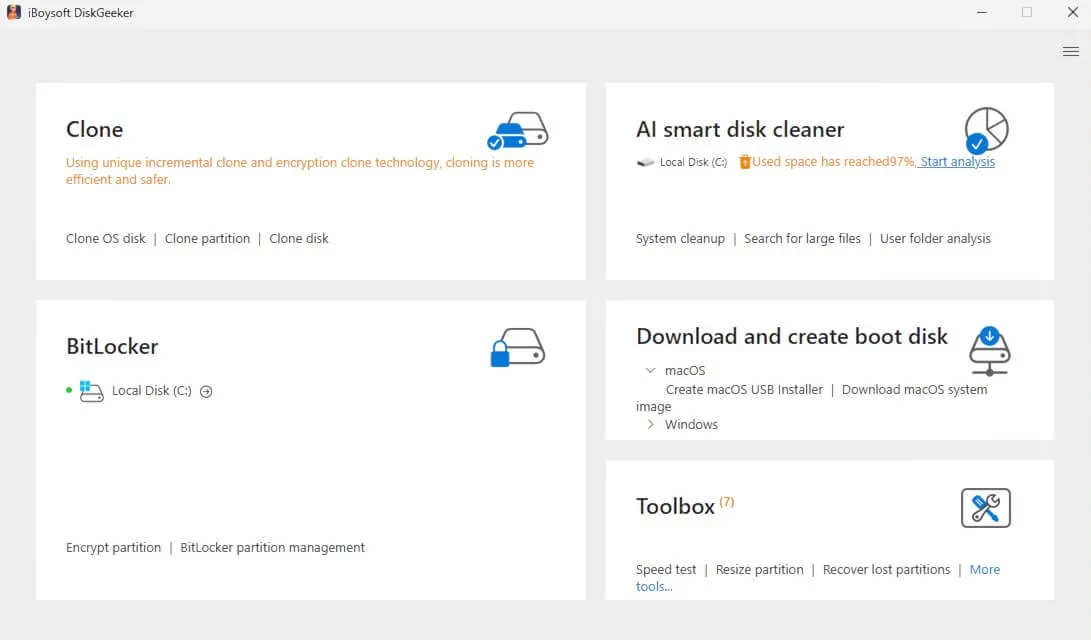
- Select the USB drive and click "Select."
- Choose the required Windows 11 edition and click "Start creating boot disk."
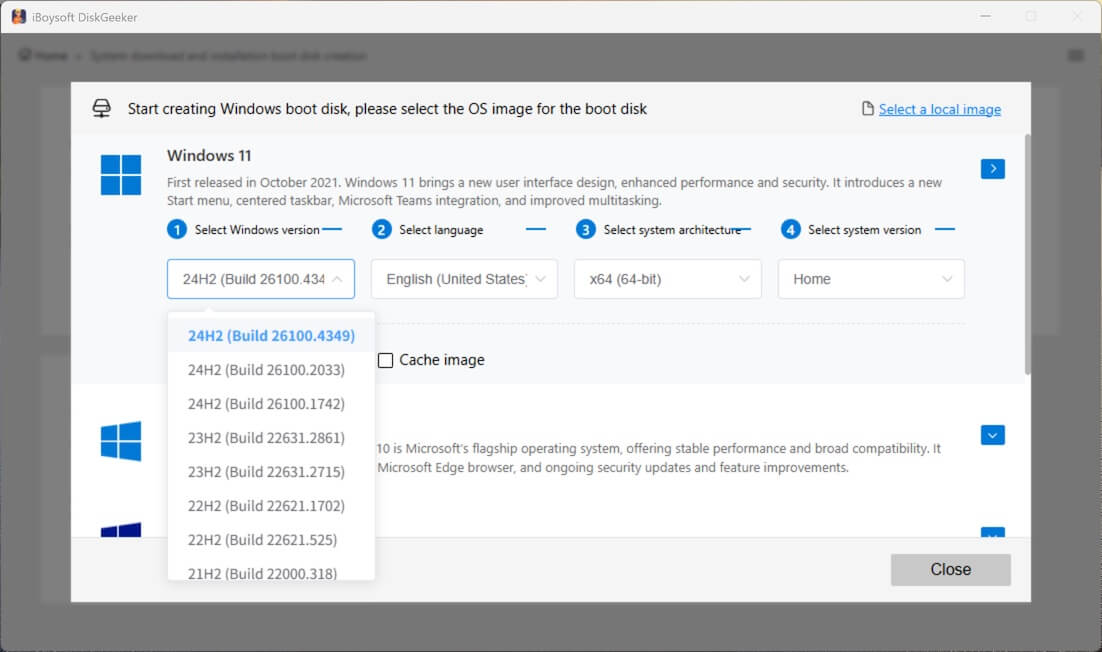
The program automatically downloads the ISO and builds the bootable USB.
Create a Bootable USB Using Microsoft's Media Creation Tool
- Visit Microsoft's official website.
- Select "Download Now" under Create Windows 11 Installation Media.
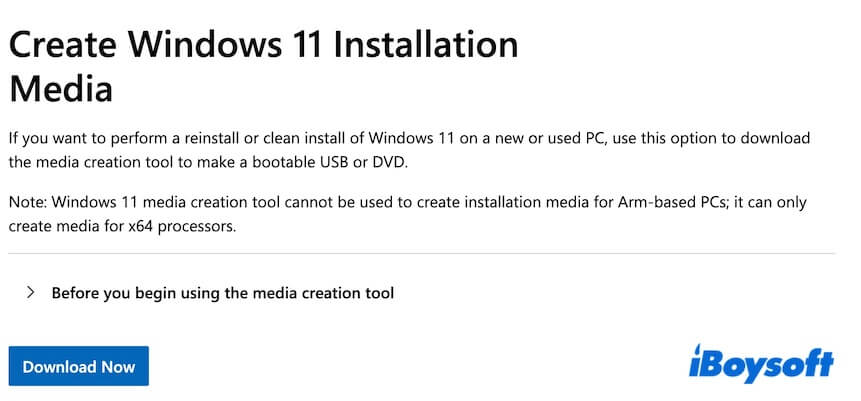
- Run the downloaded .exe file and accept the licence terms.
- Choose a language and edition.
- Select "USB flash drive" as the media type.
- Connect a USB drive with at least 64 GB capacity.
- Select the detected USB drive.
- The tool downloads Windows 11 and creates the bootable USB.
- Wait until the process completes.
To boot from the USB installer:
- Insert the USB into the target PC.
- Restart and press the correct key to enter Boot Menu or BIOS/UEFI:
Dell: F12
HP: F9 or Esc
Lenovo: F12
Acer: F12
ASUS: Esc or F8
MSI: F11 - Select the USB drive as the boot device.
- Complete Windows 11 installation.
Note: For Media Creation Tool or Rufus instructions, see: How to Create Windows 11 Bootable USB
Create a Directly Bootable Copy of Windows 11
If you intend to boot a non-starting PC or test Windows 11 on multiple machines, creating a traditional installer may not be necessary.
iBoysoft DiskGeeker for Windows allows you to clone the Windows 11 system partition directly, producing a fully bootable copy.
Steps:
Steps:
- Connect a USB drive larger than the Windows 11 system disk.
- Install and open iBoysoft DiskGeeker for Windows.
- The system partition is automatically selected as the source.
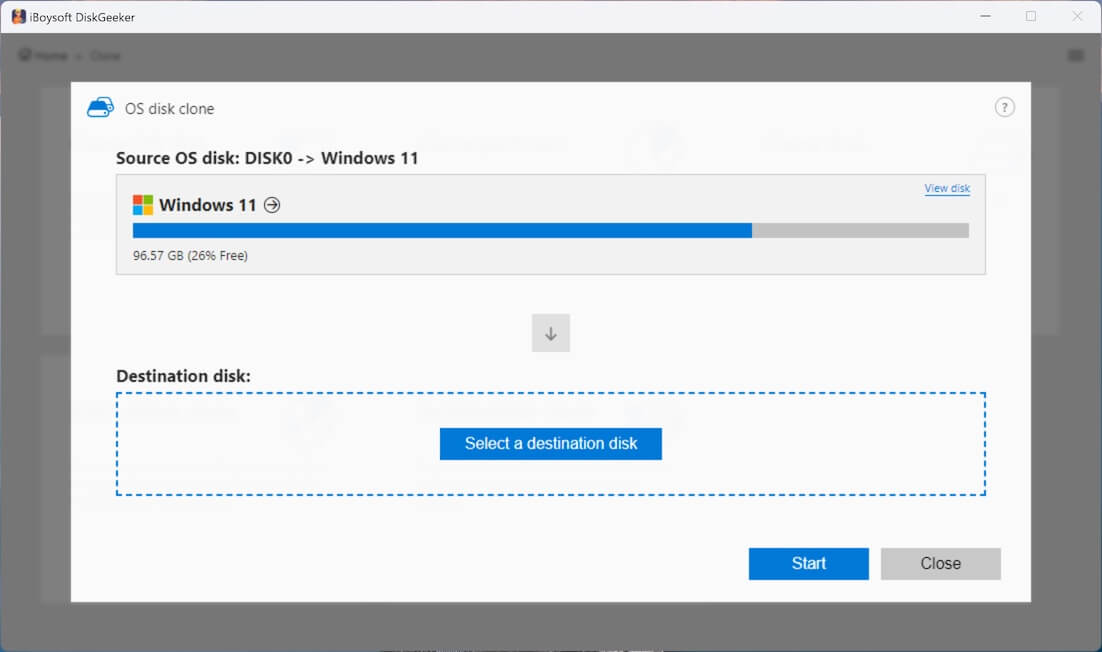
- Choose the USB drive as the destination disk.
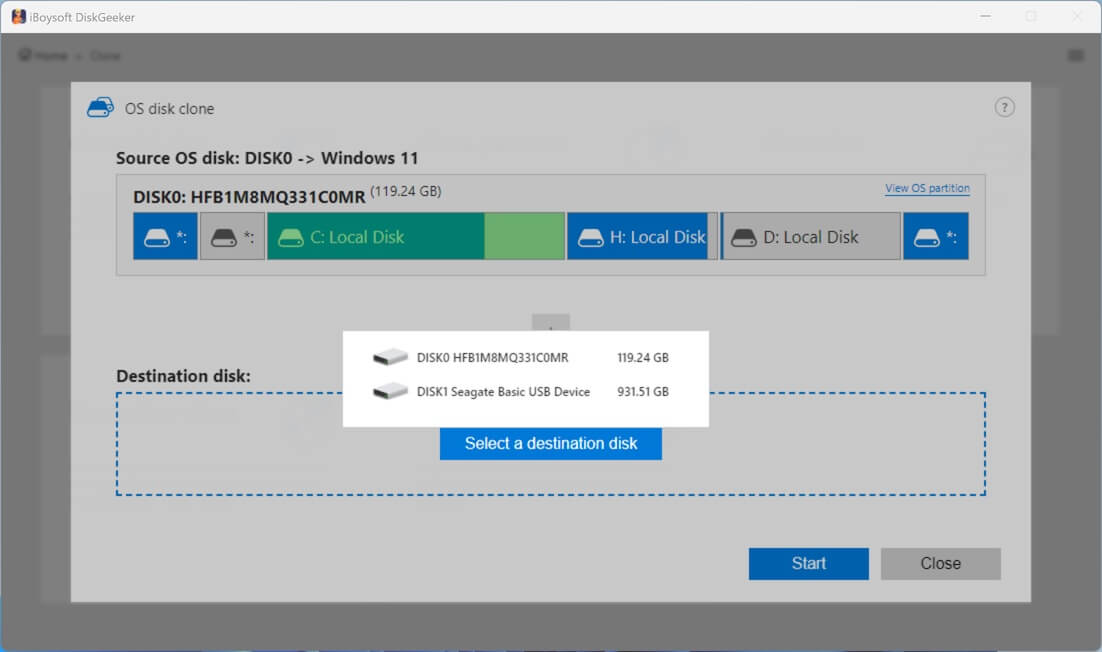
- Click "Start" > "Confirm" to begin cloning.
Conclusion
Unlike questionable third-party sources, the Windows 11 ISO links provided here come directly from Microsoft and archive.org, a reputable non-profit digital library.
For creating a Windows 11 bootable USB, iBoysoft DiskGeeker for Windows offers a straightforward approach by cloning an existing system without complex setup steps..
If this Windows 11 ISO download guide was helpful, consider sharing it.
FAQs about Windows 11 ISO download
- QCan Windows 11 ISO be downloaded free of charge?
-
A
Yes. Microsoft provides Windows 11 ISO downloads for free. A valid product key is required for full functionality.
- QWhat is the smallest Windows 11 version available?
-
A
Windows 11 SE is the smallest official version, designed mainly for education devices. Tiny11 is the smallest unofficial build, created by independent developers.
- QWhen will Windows 11 25H2 be available?
-
A
Windows 11 25H2 is expected to be released publicly in the second half of 2025.
- QIs Tiny11 an official Microsoft product?
-
A
No. Tiny11 is not developed or distributed by Microsoft.
- QWhat is the minimum CPU requirement for Windows 11?
-
A
Windows 11 requires a 64-bit processor.